
The best video editing software for training videos spans three categories: dedicated eLearning editors (iSpring, Camtasia), general-purpose editors (Filmora, DaVinci Resolve), and complementary tools like ScreenPal and PowToon. Teams building their own training-video app have a fourth option: a video editing SDK. Banuba Video Editor SDK is a production-ready mobile video editing engine for iOS, Android, Flutter, and React Native that reduces video-feature integration from months to weeks.
When considering launching your product, it is always a good idea to look at what the competitors currently offer. So, if you intend to build the best video editing software for training videos, this article is for you. It contains:
- 3 types of training video editors: dedicated, general-purpose, and complementary tools, with an explanation of what they are;
- 25 best training video software with notable features highlighted and pricing models described;
- A way to save money and launch faster with a video editing SDK, along with integration instructions.
3 Types Of Training Video Editing Software
There are several types of tools to create training videos. The distinctions between them are murky, as certain notable features could be present in different apps.
The first is dedicated editors, either standalone or built into a larger authoring toolkit. They are designed for the eLearning domain and can have features that aren’t required in other niches (e.g., xAPI support). A great example here is iSpring.
The second is general-purpose editors. Such apps don’t intend to be the best software to make training videos and are opting for a more diverse set of applications. Examples include Filmora and AVS Video Editor.
The third is complementary software: slideshow makers, screen recorders, animation suites, etc. They focus on the types of content that aren’t strictly videos but perform similar functions. Vyond and PowToon are some of the most popular apps of this kind.
Of course, your training video software doesn’t have to fall firmly into one category. For example, Banuba Video Editor SDK can edit videos and make slideshows, as well as add AR filters, transition effects, picture-in-picture format, etc.
However, trying to cover everything in an MVP might be too hard and expensive. So, in the beginning, it is better to focus on a few core functions. Unless you are going to use an SDK to save money and expand the feature set, but more on that later.

25 Best Video Editing Software For Training Videos
These are some of the best instructional video software on the market today, in no particular order. Look through them and see what you can learn from them to improve your own product.
1. Filmora
Filmora is one of the most popular video editing tools in the world. With a huge feature set (color correction, text-to-speech, split-screen, background replacement, etc.), a straightforward interface, and a fair price, it retains strong user ratings on independent review websites, though scores vary by platform (desktop reviews trend higher than mobile app store ratings). Besides its core offering, Filmora earns by selling subscriptions to premium features and AI credits (e.g., AI-powered motion tracking, background removal, and text-to-video tools).
Filmora's mobile app (formerly branded separately as FilmoraGo) has since been folded into the main Filmora app, now available free on iOS and Android with built-in AI editing tools. It is a quality app in its own right, but it also works as a marketing tool for its more powerful desktop counterpart. People who like it are more likely to purchase a subscription for Windows or Mac.
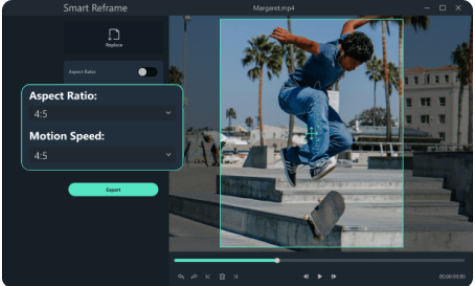 Filmora
Pricing: Subscription pricing varies by platform.
For Windows, Basic costs $4.17/month, Advanced $5/month, and Premium $8.33/month.
For macOS, Basic is $5.83/month, Advanced $6.67/month, and Premium $10/month.
Please note that pricing on Google Play and the App Store may be different.
2. iSpring Suite
iSpring is among the top authoring tools on the market. Its capabilities include a powerful video editor with captions, infographics, transition effects, screen recording, interactive elements, and AI-assisted text-to-speech, and more.
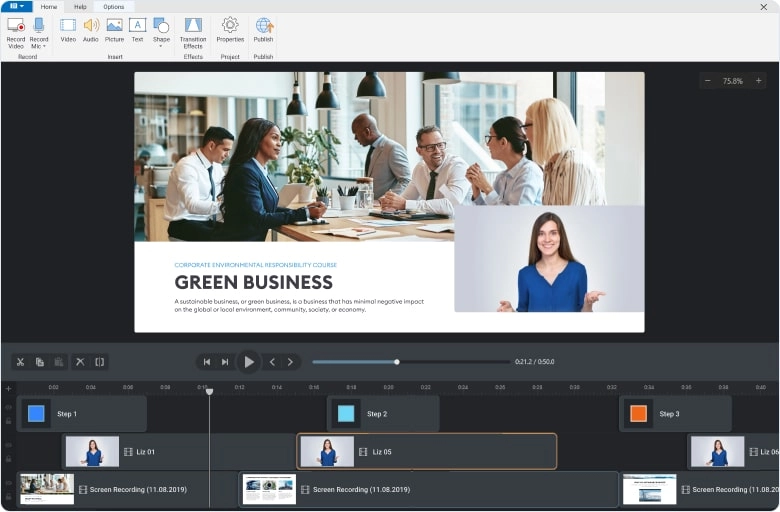
Users praise it for a convenient UI similar to PowerPoint and realistic text-to-speech. The latter is especially helpful for people who aren’t skilled at voice presentations and don’t have the budget to hire a professional narrator. In 2026, it is also widely used for creating interactive e-learning modules (not just simple training videos).
Pricing: From $720 per author per year (iSpring Cloud AI tier), $970 per author per year for iSpring Suite, and up to $1,290 per author per year for iSpring Suite AI, which is the tier that includes text-to-speech.
3. Camtasia
Camtasia started off as a screencast capture tool but has since become a powerful video editor. Its UI is based on a drag-and-drop style that users can easily understand and use without extensive training. Features like a royalty-free music library, PowerPoint integration, and quizzes also help create training video content and e-learning materials.
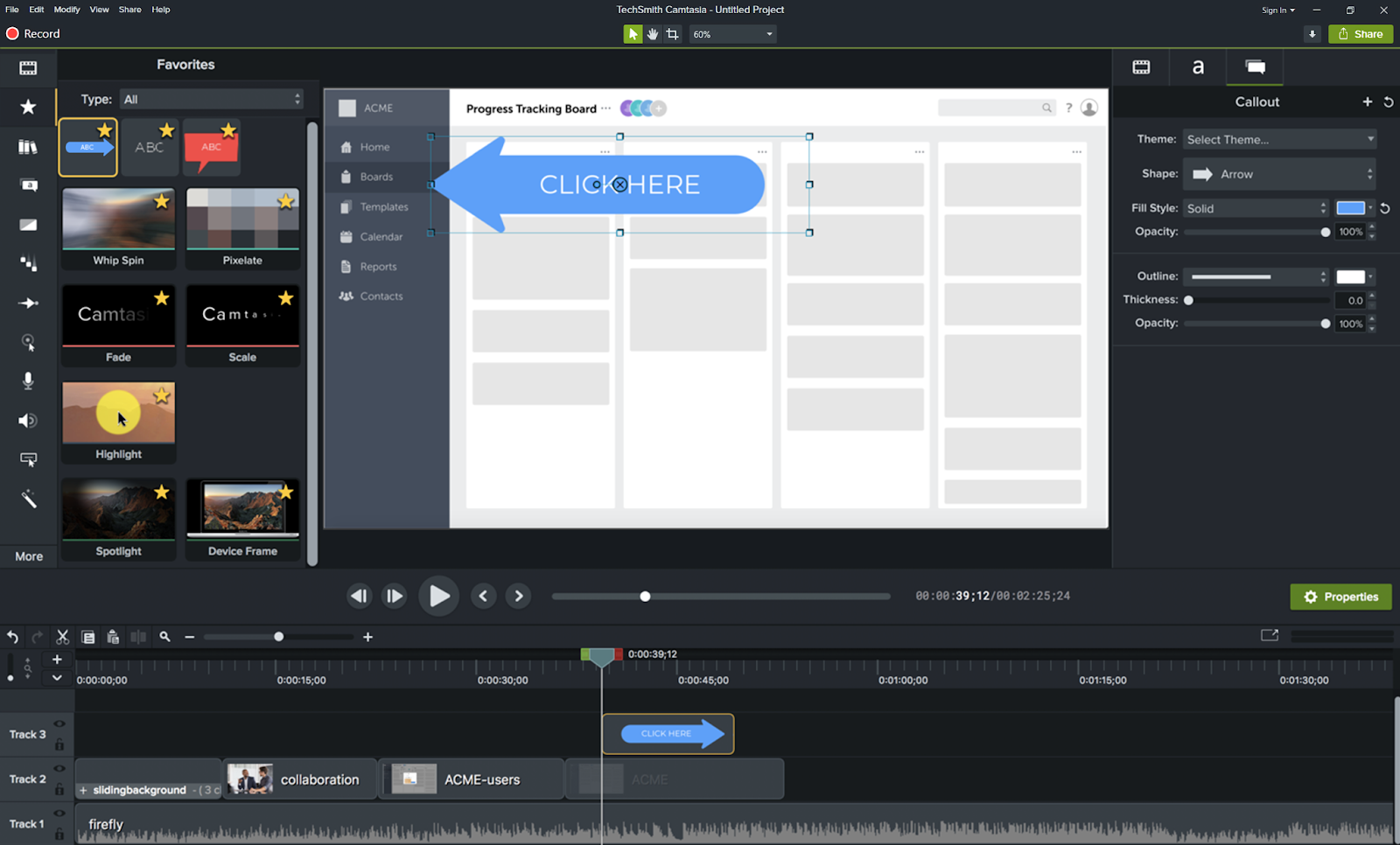
Pricing: Camtasia offers discounted education pricing for eligible users:
Educators (teachers, professors, instructional staff): $162.36 per user/year billed annually
Students: $45.00 per year billed annually.
4. Sendspark
Sendspark is a popular video platform for creating customer training videos, such as for sales demos, onboarding, and customer support.
What sets Sendspark apart is the ability to create personalized videos at scale. Using AI voice cloning and dynamic video backgrounds, Sendspark automatically generates a uniquely personalized version of a single recorded video for each viewer — for example, speaking a prospect's name in your own cloned voice while displaying their company website in the background. This helps drive engagement and brand loyalty.
Additionally, Sendspark offers video editing, brand customization, detailed analytics, team video management, and integrations with dozens of CRMs and email automation platforms.
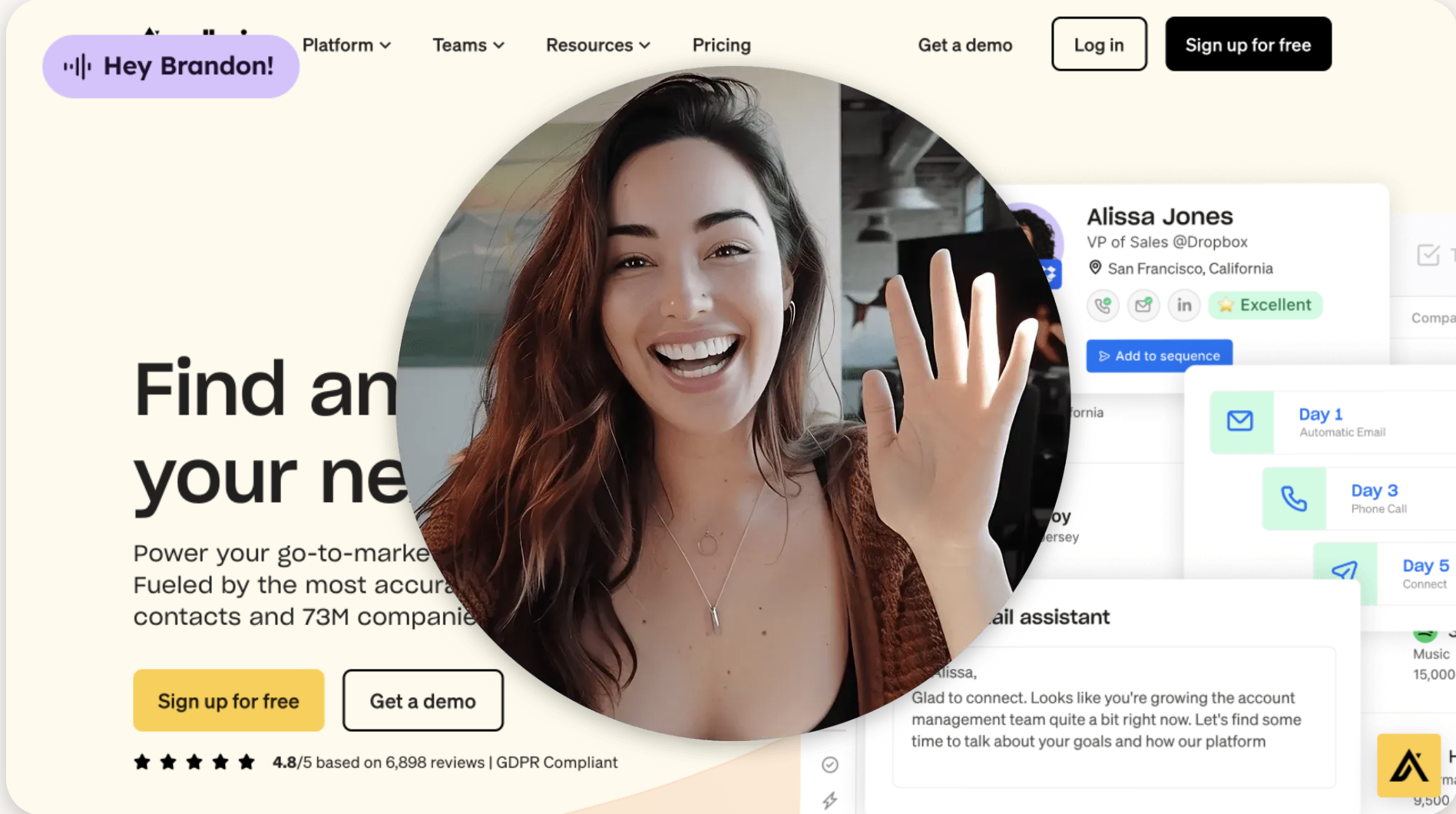
Sendspark
Pricing: Sendspark plans start at $49/month for the Solo tier (1 seat, AI voice cloning, dynamic video backgrounds, 100 Dynamic Video Minutes/month), scaling up through Growth ($99/mo), Team ($299/mo), and Business ($699/mo) tiers with more seats, storage, and advanced integrations like Salesforce and API/webhook access. Every plan includes a 7-day free trial (no credit card required to start).
5. AVS Video Editor
AVS is a professional video editing application for Windows. It has all the core features for a training video creator: screen capture, trimming, repositioning parts of videos, annotations, etc. It also includes AI-powered tools, such as generating short video clips from text prompts and AI-based image restoration effects. And it is straightforward enough so that people understand it, even if they aren’t experienced with video editing.
AVS can also create slideshows out of a series of pictures.
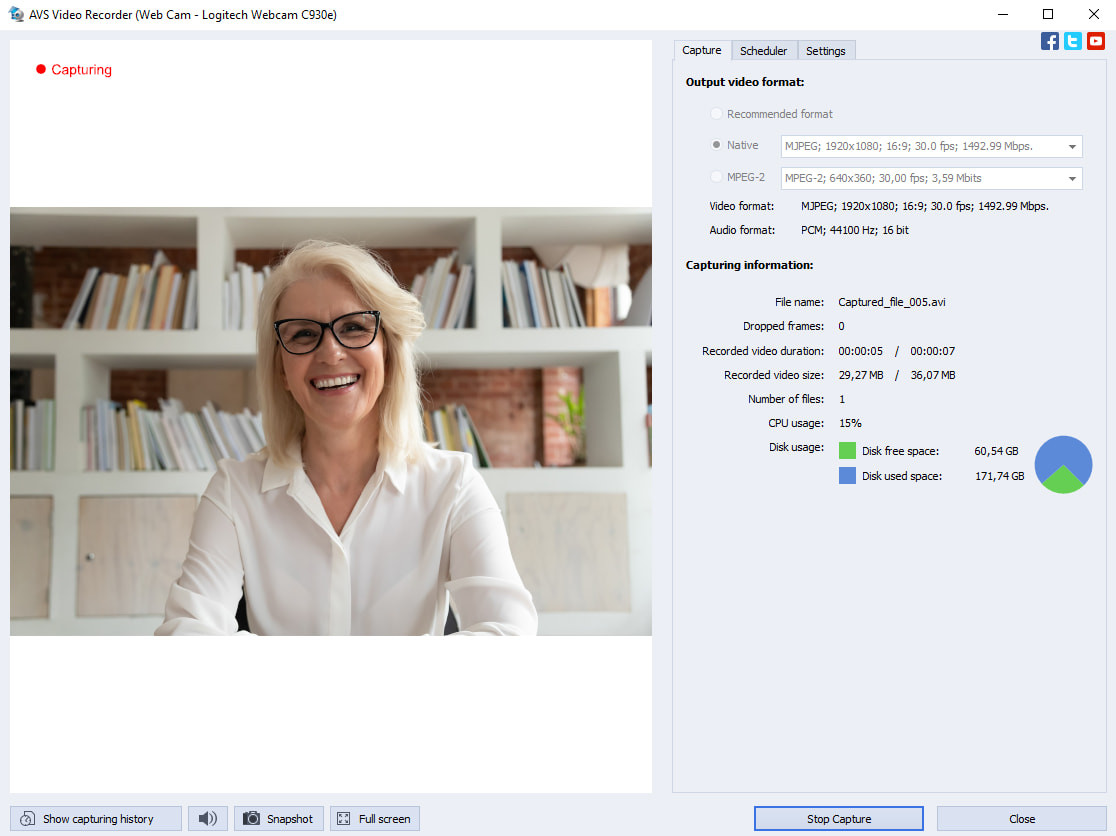
Pricing: A yearly license starts from $49. It includes AVS Video Editor and other audio and video production software from the same maker.
6. DaVinci Resolve
DaVinci Resolve is a desktop-based professional editing and VFX suite from Blackmagic Design. It is known for its extremely extensive feature set, spanning editing, color grading, audio post-production (Fairlight), and visual effects (Fusion). Like HitFilm before it, it is not particularly beginner-friendly — it has a real learning curve, and is aimed at users who want Hollywood-grade tools, not a quick drag-and-drop editor.
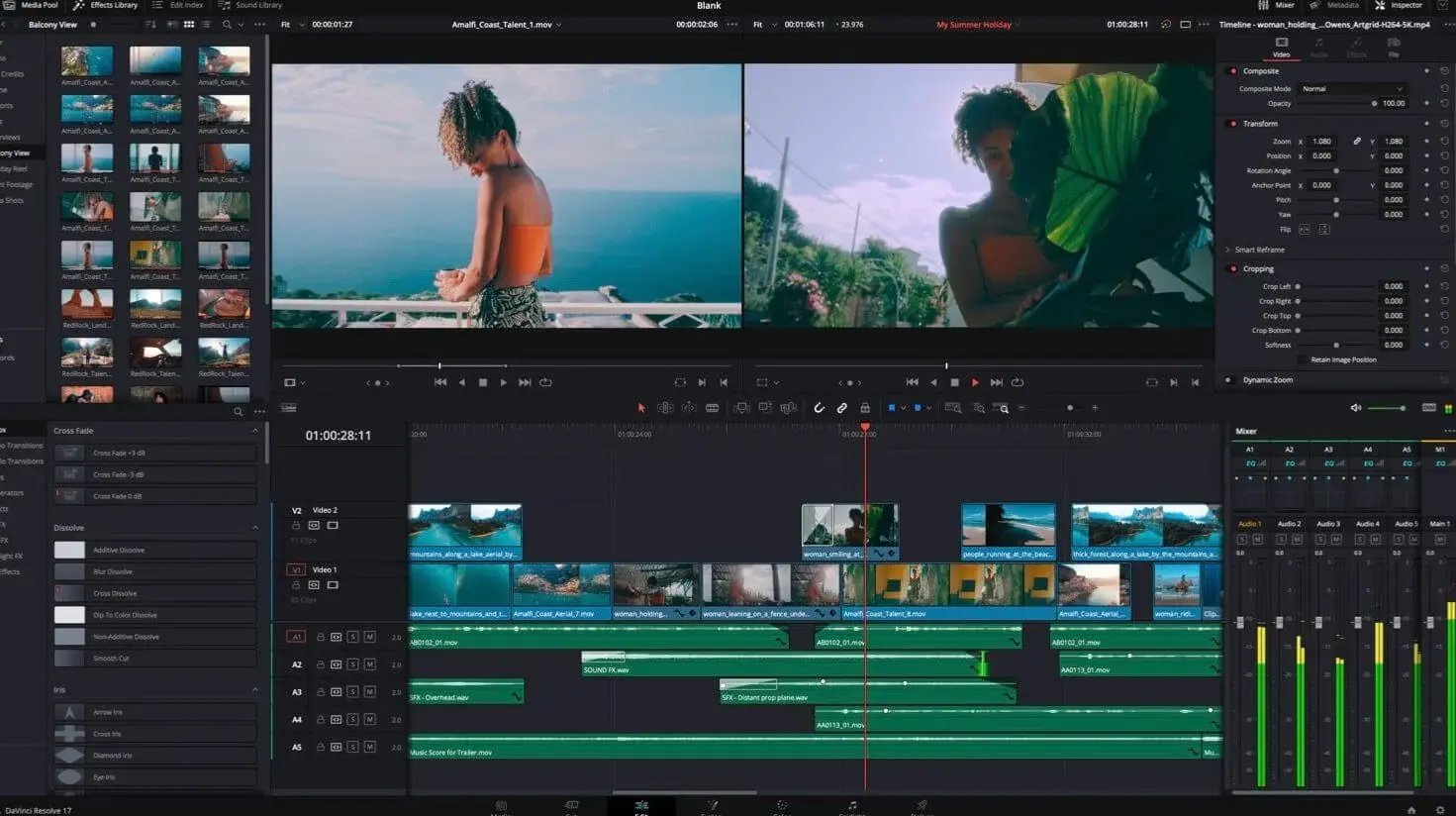
DaVinci Resolve | Video Editing Software for Training Videos
Other notable features include Fusion's node-based 3D compositing (for importing and animating 3D models within a scene) and a built-in particle simulator for generating effects like smoke, sparks, or debris (in case the user needs a blockbuster-level training video).
Pricing: DaVinci Resolve offers a generous free version with no watermark or time restrictions. It includes the full Fusion VFX toolset, the Fairlight audio suite, and supports exports up to Ultra HD 4K at 60 fps. For a one-time payment of $295, DaVinci Resolve Studio unlocks 8K+ support, AI-powered features, advanced noise reduction, and multi-user collaboration.
7. Panopto
Panopto is designed to fit both business and academic users. It is more than just an application aiming to become the best software for training videos — it is a platform with screen-capturing, video editing, and video hosting capabilities. As it is primarily aimed at training videos, its feature set includes capabilities aimed at this segment: captioning, making quizzes, and so on.
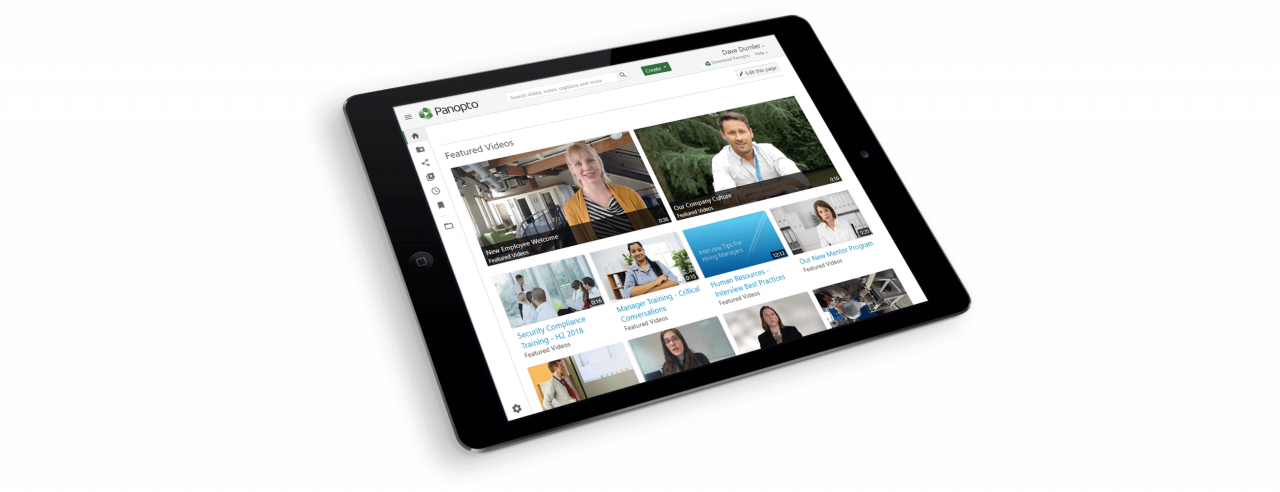
Pricing: Pricing is fully custom and quote-based, tailored to your organization's user count, storage needs, LMS integrations, and support tier — there's no published flat-rate plan. Interested organizations can request a quote directly from Panopto.
8. ScreenPal (formerly Screencast-O-Matic)
ScreenPal, rebranded from Screencast-O-Matic in 2022, gained popularity as a screen and webcam recording tool, and the company also has an app to edit videos. It offers a lot of transition effects, text/picture overlays, zooming in on certain elements of a video, etc.
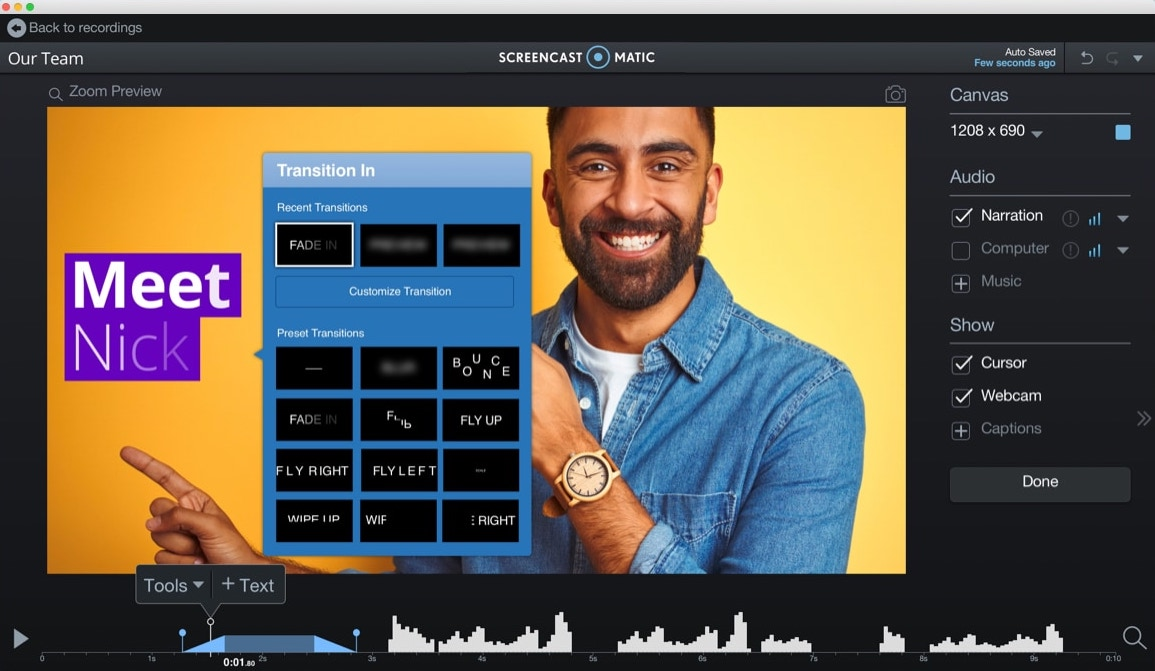
ScreenPal works on iOS, Android, Mac, Windows, and Chromebooks, allowing it to access a large potential audience.
Pricing: The pricing plans for education are cheaper compared to the ones for businesses. The cheapest individual plan is $3/mo (billed annually) or $4/mo (billed monthly), but there is also a free option (15-minute recordings, watermarked).
9. Loom
Loom is a screen capture and video editing software that focuses on corporate and academic training. Loom was acquired by Atlassian in 2024 and is now billed and administered through Atlassian's platform, alongside products like Jira and Confluence. It has desktop and mobile versions, as well as a Chrome extension. Its core features are similar to most other competitors. However, it has emoji reactions, custom calls to action, and detailed video analytics. Not many other training video software have those.
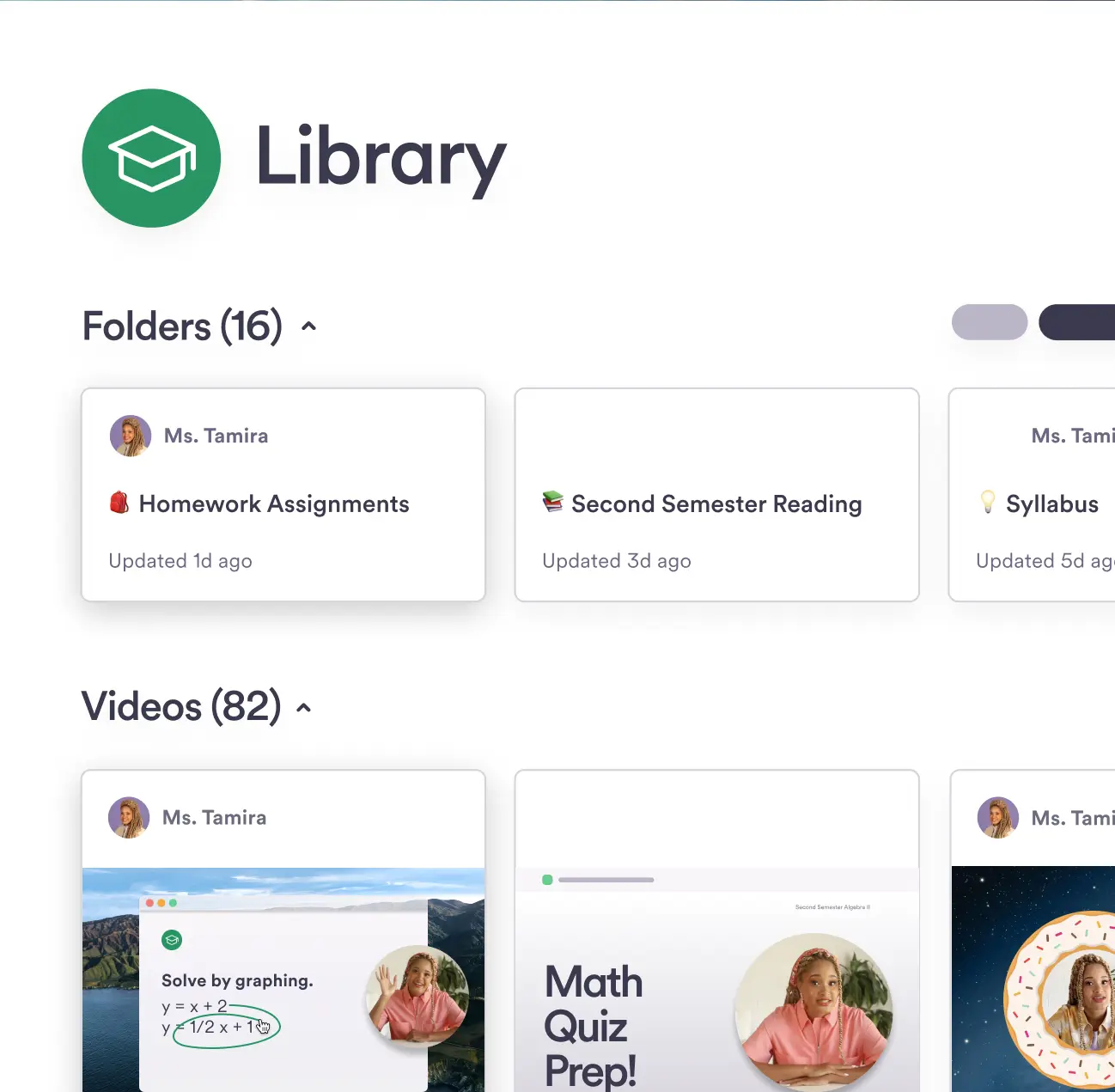
Pricing: A free Starter plan is available for teams of up to 10 users. It includes 25 videos per person and a 5-minute recording limit for each video. Paid plans start at $18/user/month for the Business tier, which offers unlimited videos, unlimited recording length, HD and 4K exports, and custom branding. The Business + AI plan costs $24/user/month and adds AI-powered editing, transcript-based editing, automatic summaries, and chapters.
10. Ezvid
Ezvid is a free video editing application for Windows. The price alone makes it the best training video recording software for some. However, it boasts a lot of useful features, including speech synthesis, playback speed editing, and overlays. It is not as feature-rich as some of its competitors but it is often enough.
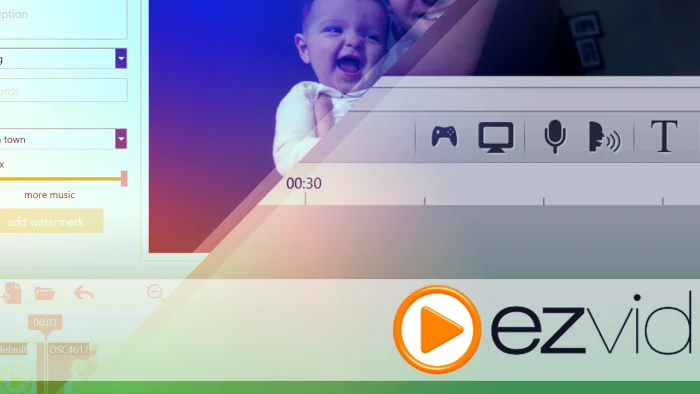
Pricing: Free. If the users want, they can donate to the developers through a PayPal widget.
11. FlashBack Express (formerly FlashBack Pro)
FlashBack Express is the current version of the screen recorder built by Blueberry Software — the product formerly sold as "FlashBack Pro" was retired and succeeded by Express. It can capture footage from a single screen, several of them, or a selected area. In addition, it has a powerful array of commenting, overlays, transitions, and other effects. Finally, FlashBack Express allows users to export their clips to social media (e.g., YouTube).
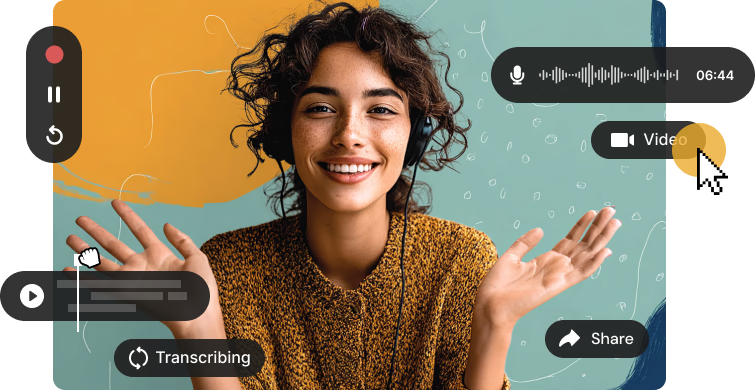
FlashBackExpress
Pricing: Choose between a $49 lifetime license or a $29/year subscription. Major upgrades cost extra, with 50% off for existing license holders. Students, teachers, government institutions, and nonprofits qualify for discounted pricing.
12. Mindstamp
Mindstamp is an interactive video platform. It lets you add clickable buttons, questions, branching, and personalization to a clip so viewers can interact with it, and you can see how the video performs in an analytics panel. That interactivity is useful for adding extra detail or knowledge checks to a training video.
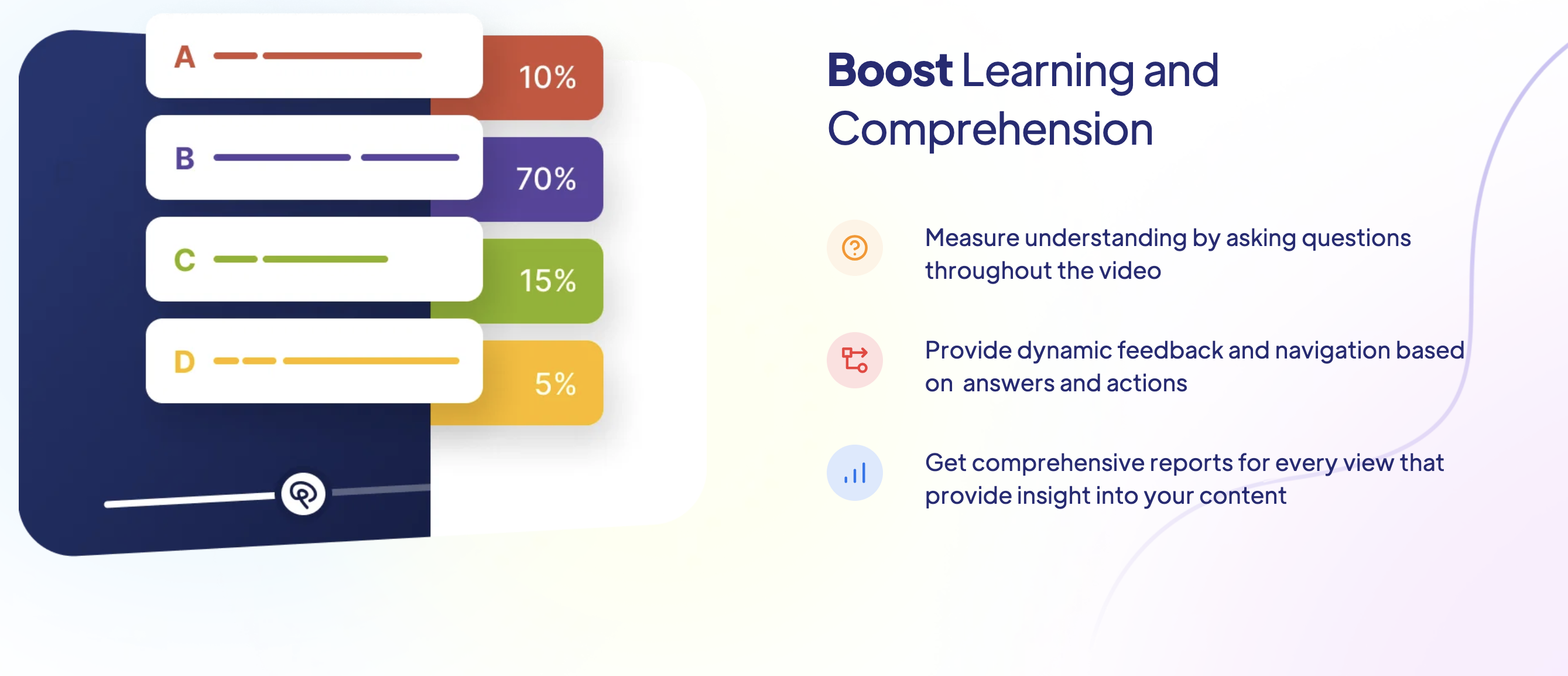
Mindstamp
Mindstamp is web-based, so it works on any connected device with a screen and a browser, similar to Web AR technology.
Pricing: Mindstamp has no permanent free plan, but offers a 7-day free trial (no credit card required). Paid plans start at $99/month (Basic), scaling to $299/month (Core) and $499/month (Pro), with custom Enterprise pricing for larger organizations.
13. Verse
Verse is also an interactive video platform, suited for branching stories or multi-stage training programs. It utilizes hotspots and tags, can create slideshows, and includes advanced analytics (at the Professional tier and above). It even supports 360-degree videos and includes many video templates to make creating high-quality content easier.
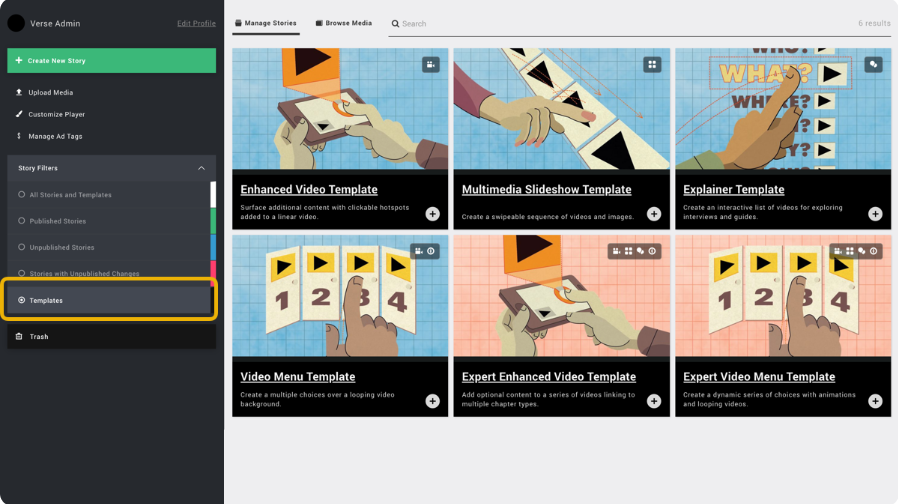
Pricing: The entry-level plan is priced at $100/month and is intended for individuals producing non-commercial videos. It comes with some limitations, including no analytics integrations and a monthly upload cap of 60 minutes.
Creators selling tutorials, courses, or other paid content will likely need a commercial plan, such as the $1,000/month Professional tier or a custom Enterprise solution for more advanced requirements.
14. Vyond
Vyond is one of the most user-friendly tools to create training videos. It focuses on creating animated content, with premade and custom characters, effects, video templates, and more. However, there are issues with sharing characters, which means sometimes users have to recreate them from the ground up instead of using the one their coworker made.
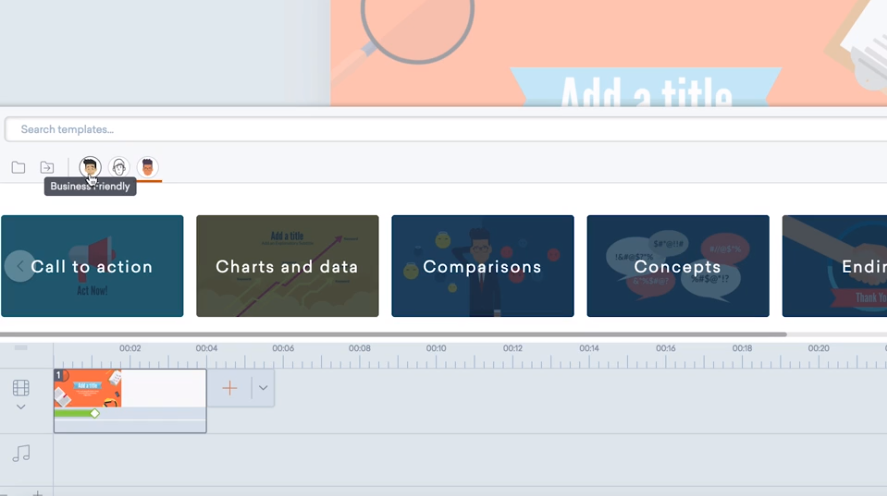
Pricing: For new users, the Starter plan ($699/year) is the most affordable option, bringing the monthly cost to about $58 when paid annually. It offers watermark-free videos and supports high-resolution exports, including 1080p on every plan.
If you need to work with a team, create longer videos, or manage business workflows, the Professional and Enterprise plans add collaboration tools and SSO. Agencies producing client-facing content can opt for the Agency plan, which includes unlimited rights transfers.
15. PowToon
PowToon is one of the best tools for recording training videos with animations. It boasts a lot of premade characters, backgrounds, music tracks, effects, and other features. It is also simple enough that untrained people can easily create solid content with it.
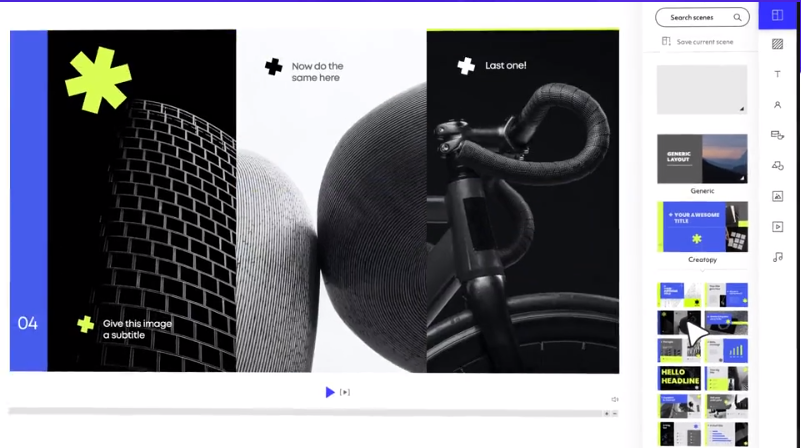
Pricing: If you’re only creating videos for personal use, the free plan may be enough, though it comes with a watermark, 720p quality, and a 3-minute limit.
The Lite plan ($15/month billed yearly) is the first paid option and removes the watermark for up to 5 exports each month while enabling 1080p downloads. Creators who need more flexibility can upgrade to Professional ($40/month) or Advanced ($125/month) for longer videos, unlimited exports, and deeper customization tools. Students and teachers can save with the $8/month Education plan.
16. Adobe After Effects
After Effects is a venerable application that professionals around the world use as a training video creator. It has a colossal stock of images, videos, and objects (over 60 million) that its users can include in their projects. It is also well-integrated with other products in the Adobe ecosystem, for example, Photoshop and Illustrator.
However, being so complex, it is not beginner-friendly at all.
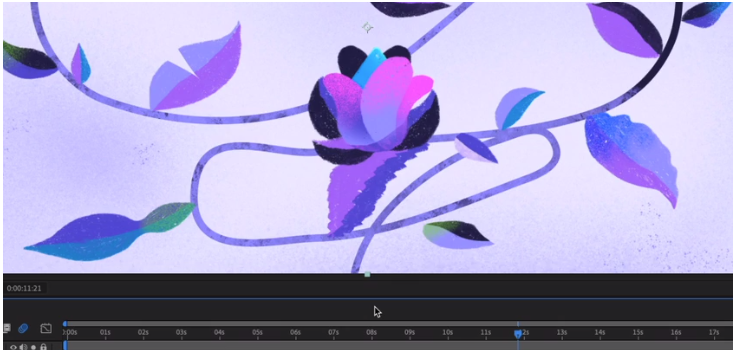
Pricing: If you're subscribing as an individual, you can choose an annual plan for $22.99/month (paid monthly) or a flexible month-to-month plan for $34.49/month. Students and teachers qualify for a reduced price of $19.99/month.
Schools and universities should note that Adobe changed its education licensing on April 1, 2026. The old per-device pricing is no longer available, and institutions now need a custom quote for Faculty or Student Enterprise licenses.
17. Synthesia
Synthesia is a leading AI video platform built specifically for training and eLearning content. Instead of manual editing, you write or paste a script and Synthesia generates a complete video using an AI avatar presenter, automatic voiceover, and synced captions — no camera, actor, or recording setup required. It fits the eLearning setting well, with quizzes, clickable branching paths, and an AI script assistant to speed up instructional video creation, along with support for 120+ languages for multilingual training rollouts.
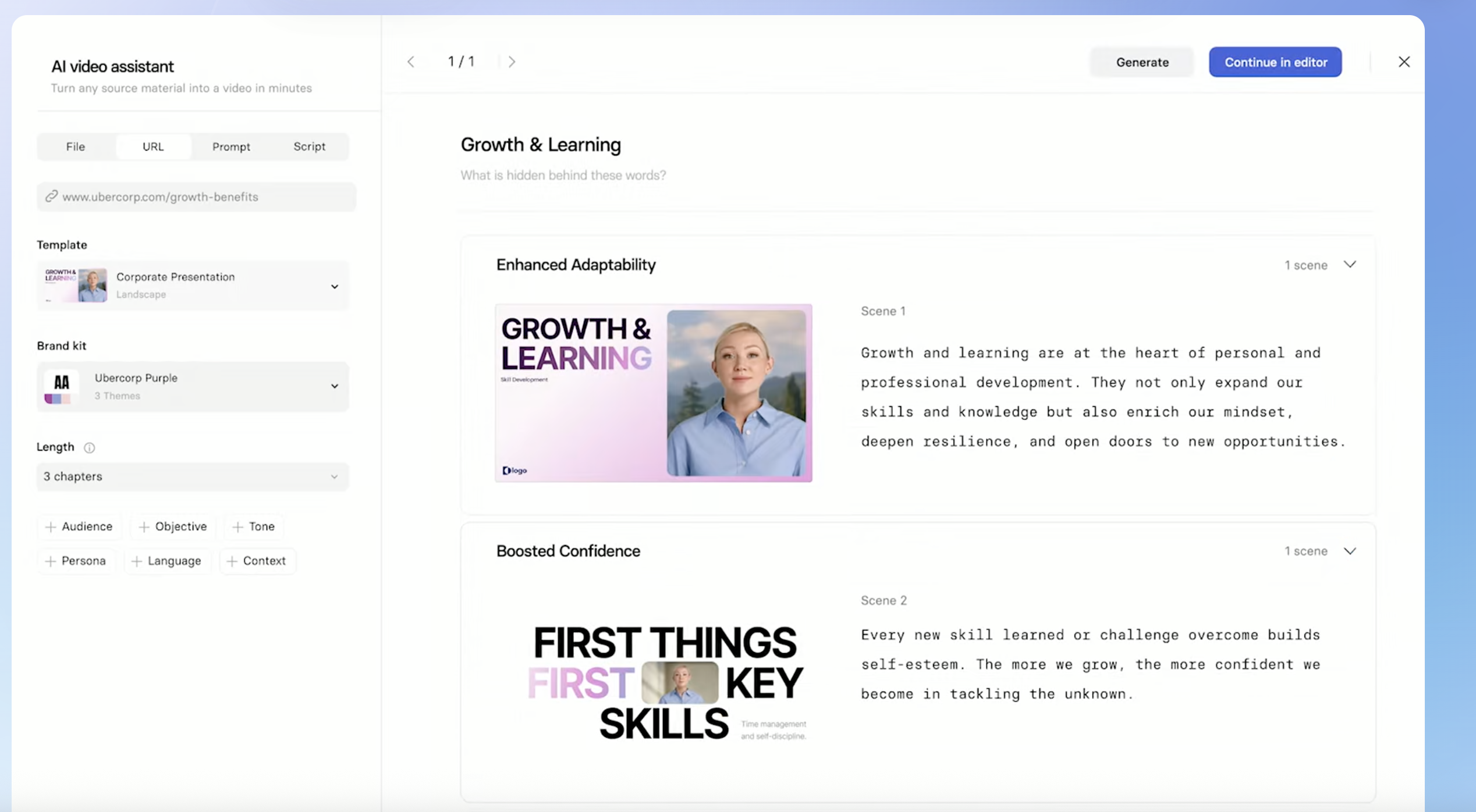
Synthesia
Pricing: If you're just getting started, the free Basic plan gives you 10 minutes of video creation each month, though exports include a watermark.
Upgrading to Starter costs $19/month, or $14/month with annual billing. The Creator plan increases the available features for $49/month, or $39/month billed annually. Larger teams can opt for a custom Enterprise plan with unlimited video minutes, SSO, and SCORM export support.
18. Wideo
Wideo is a simple template-based online software for videos. Animations are at its core, but it is also capable of working with traditional videos. Wideo can edit horizontal, vertical, and square footage; export content as GIFs, and share clips via a URL. Another interesting feature is privacy control, allowing users to choose who can view certain videos.
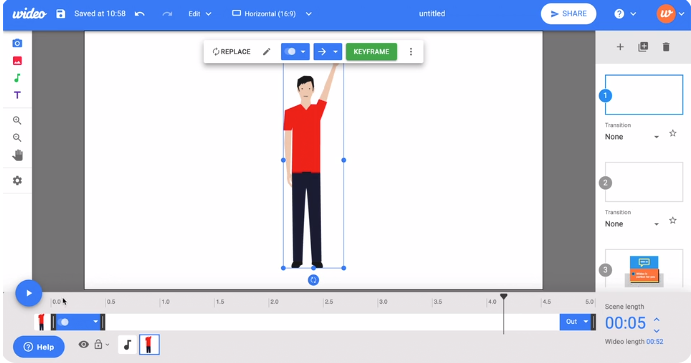
Pricing: You can start with a free plan, but it includes branding and limits videos to 1 minute.
For more flexibility, the Basic plan costs $59/month, or $19/month when paid annually. The Pro and Pro+ plans offer more features, including longer videos, unlimited downloads, and support for teams, with prices ranging from $39/month to $79/month on annual billing.
19. Lumen5
Lumen5 is a cloud-based tool to create training videos, explainers, business presentations, and more. It features automatic content integration from third-party sources, AI-assisted editing, automated keyword highlighting, and many other functions that save users' time. Lumen5 supports resolutions of up to 1080p (on Starter tier and above; Basic tier does not include 1080p export) and the following aspect ratios: 16:9 and 1:1.
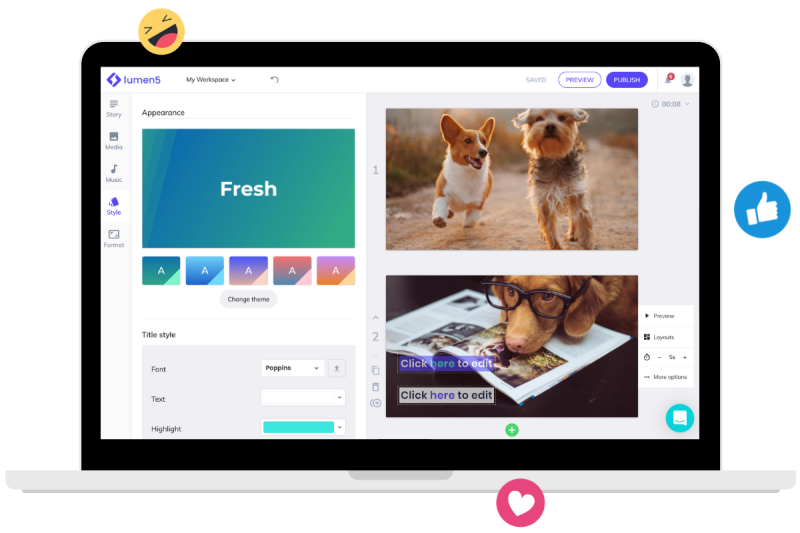
Pricing: The Basic plan is the most affordable paid option, costing $29/month or $19/month when billed yearly. It removes watermarks and allows unlimited video creation.
If you need higher-quality exports and more creative assets, the Starter plan ($79/month or $59/month annually) adds 1080p resolution and a larger stock library. The Pro plan ($199/month or $149/month annually) is designed for larger content projects, while enterprise teams can get custom pricing through the Team plan.
20. Animaker
Animaker is a cloud-based video editor that positions itself as a "swiss army knife of creativity." As the name suggests, it has powerful animation capabilities, including making complex ones with one click and automatic lip-syncing that gives drawn characters life. However, it is also capable of working with traditional videos, with resolution scaling by tier — HD on lower plans, 2K on Pro, and 4K reserved for the custom-priced Enterprise tier.
Animaker’s interface uses a lot of drag-and-drop mechanics, making it easy to work with.
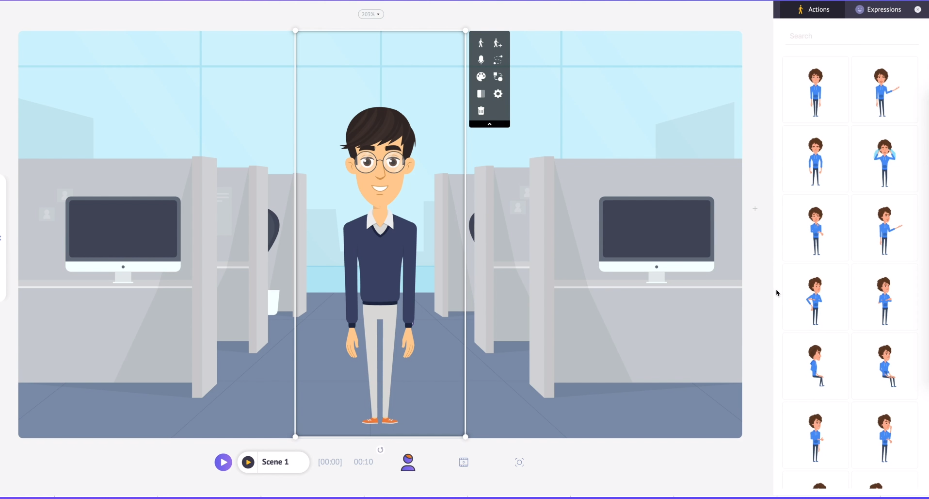
Pricing: You can get started with Animaker for free, but paid plans unlock more advanced capabilities. The Starter plan starts at $25/month with annual billing, while the Pro tier adds features like 2K exports and commercial rights. For larger organizations, the custom-priced Enterprise plan includes 4K video output.
21. Nero Video
Nero is a feature-rich video editor that users praise for its price-to-value ratio. Its outstanding features include 4K video support, streaming, and even burning Blu-rays and DVDs. It can also be used as a video player. Nero is built for Windows PCs.
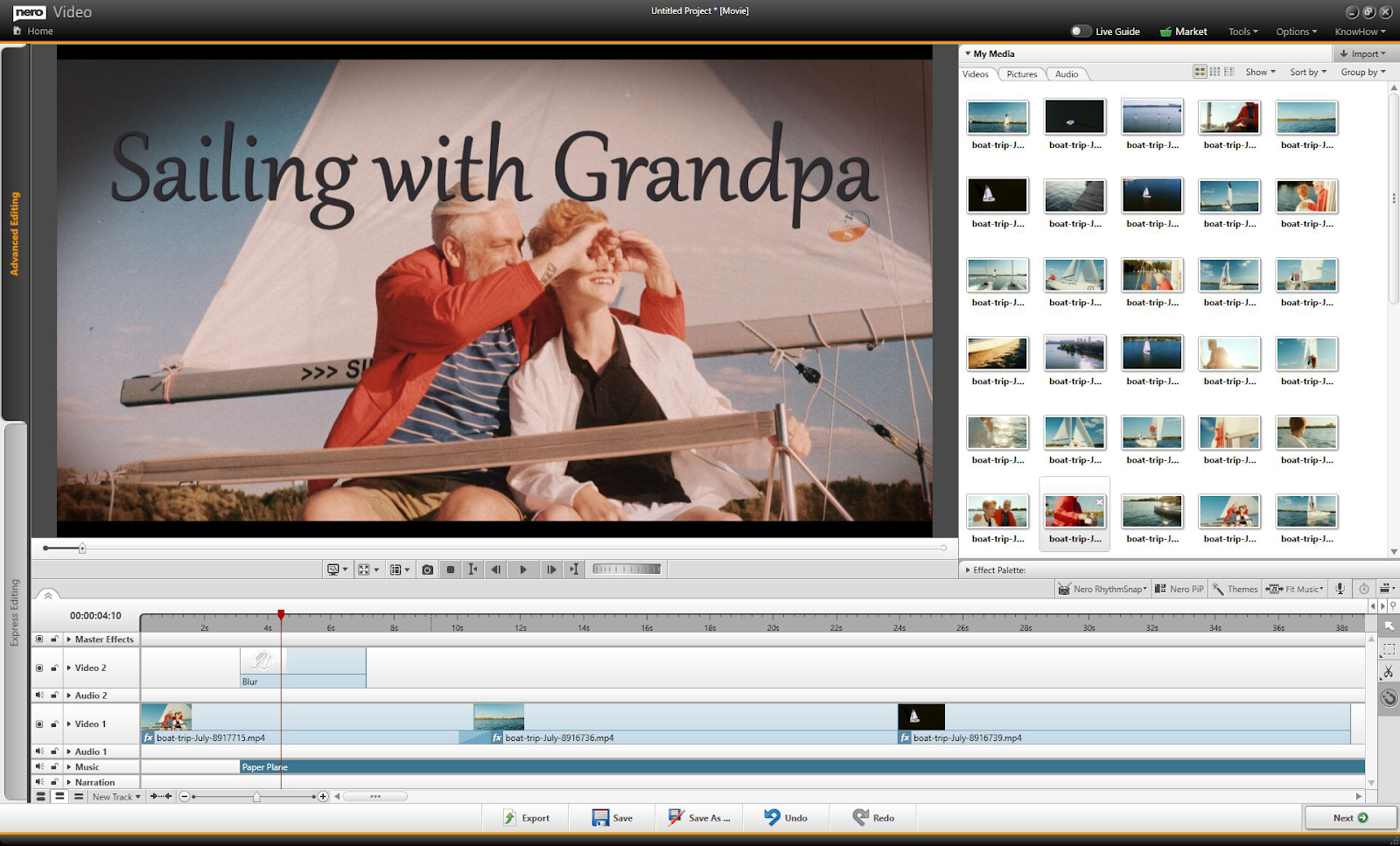
Pricing: $44.76 for a perpetual license. It can also be purchased as a bundle with other Nero products (such as the Nero Platinum Suite, which adds photo, backup, and PC-optimization tools).
22. Corel VideoStudio
VideoStudio is a professional-grade video editor and one of the best video editing software for training videos. It supports up to 8K resolution and 360-degree videos. The feature set includes basic editing, as well as face filters, beautification, motion tracking, and many other advanced functions.
Having drag-and-drop elements simplifies the UI.
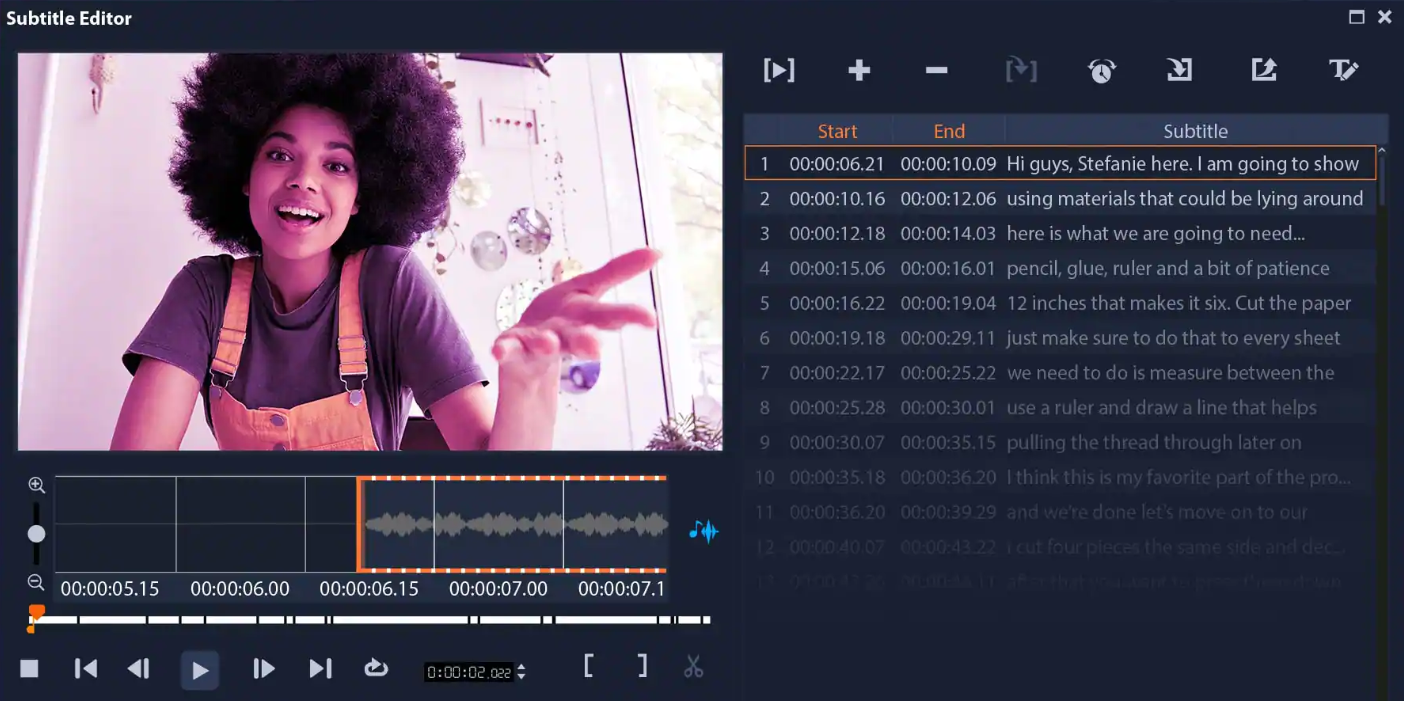
Pricing: If you prefer a one-time purchase over a subscription, Corel VideoStudio offers two options: Pro ($79.99) and Ultimate ($99.99). Both versions include a perpetual license, so there are no ongoing fees.
You can test the software with a 30-day free trial, and both editions are covered by a 30-day money-back guarantee.
23. CyberLink PowerDirector
PowerDirector is another powerful video editing tool. Users have historically complained about its cluttered interface, though CyberLink's 2026 redesign replaced the old "Rooms" navigation with a more streamlined layout. Users praise PowerDirector for its rendering speed. It has many features that help make content cleaner, such as wind removal and speech enhancement. Other functions include LUTs ("Instagram filters"), transition effects, stock footage, etc.
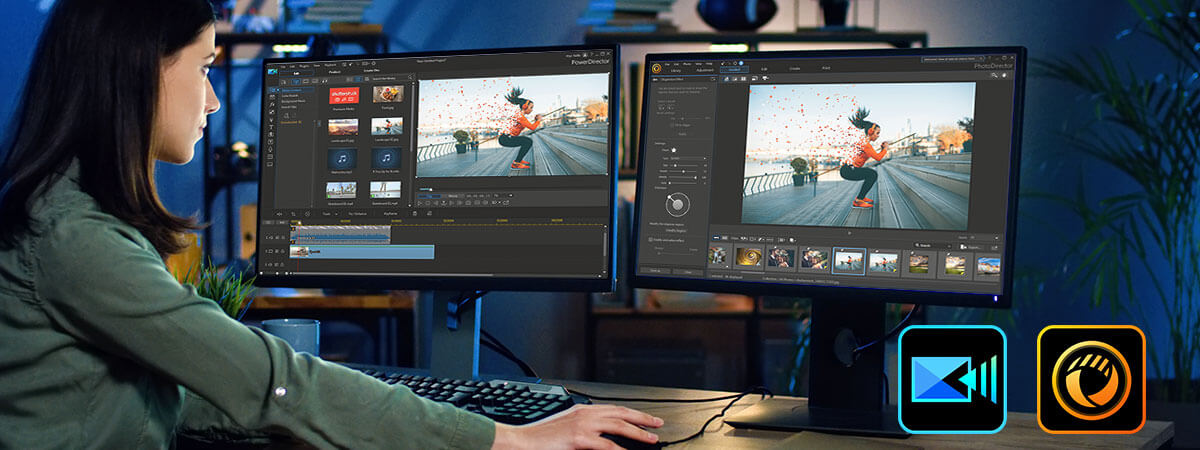
Pricing: PowerDirector 365 (subscription) starts at $59.99/year. A free tier (PowerDirector Essential) is also available with watermarked exports. It can also be purchased as a bundle with other CyberLink products (e.g., Director Suite 365).
24. InVideo
InVideo is a cloud-based video editor, known for its wide array of templates (over 5000) and stock materials. More experienced users can forego them and start from scratch, as this instructional video software has color correction, captions, premade animations, and many other tools and effects.
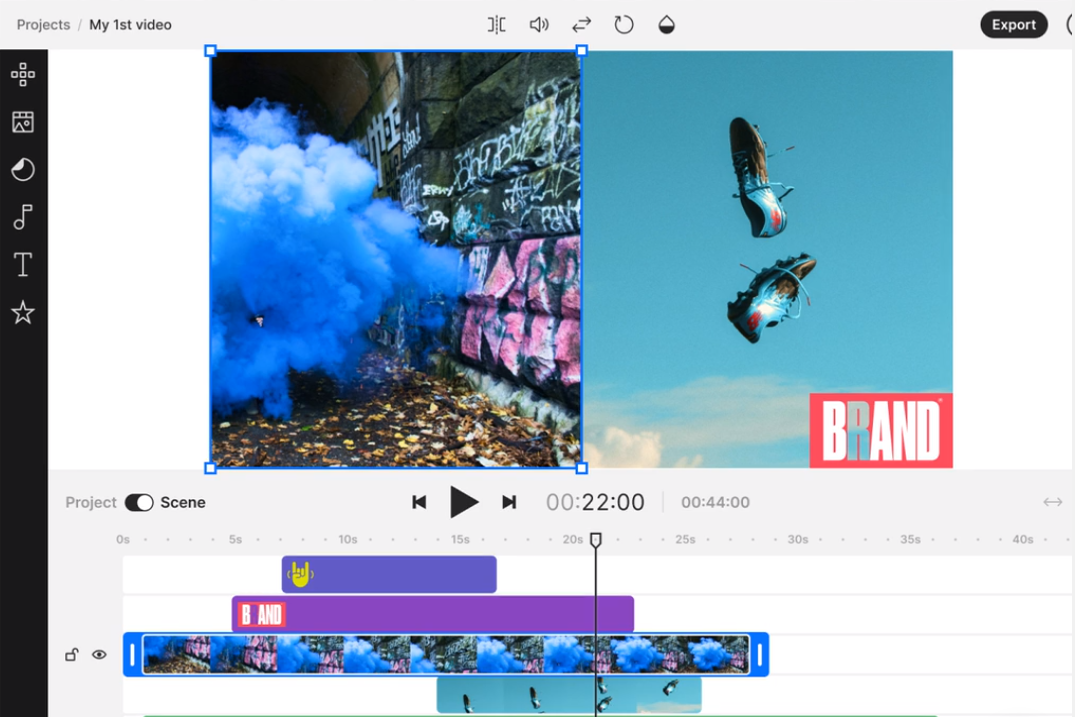
Pricing: InVideo offers a free plan with an InVideo watermark and restrictions on export quality and usage. To remove these limits, paid subscriptions start with the Plus plan at around $17/month.
25. VEED.io
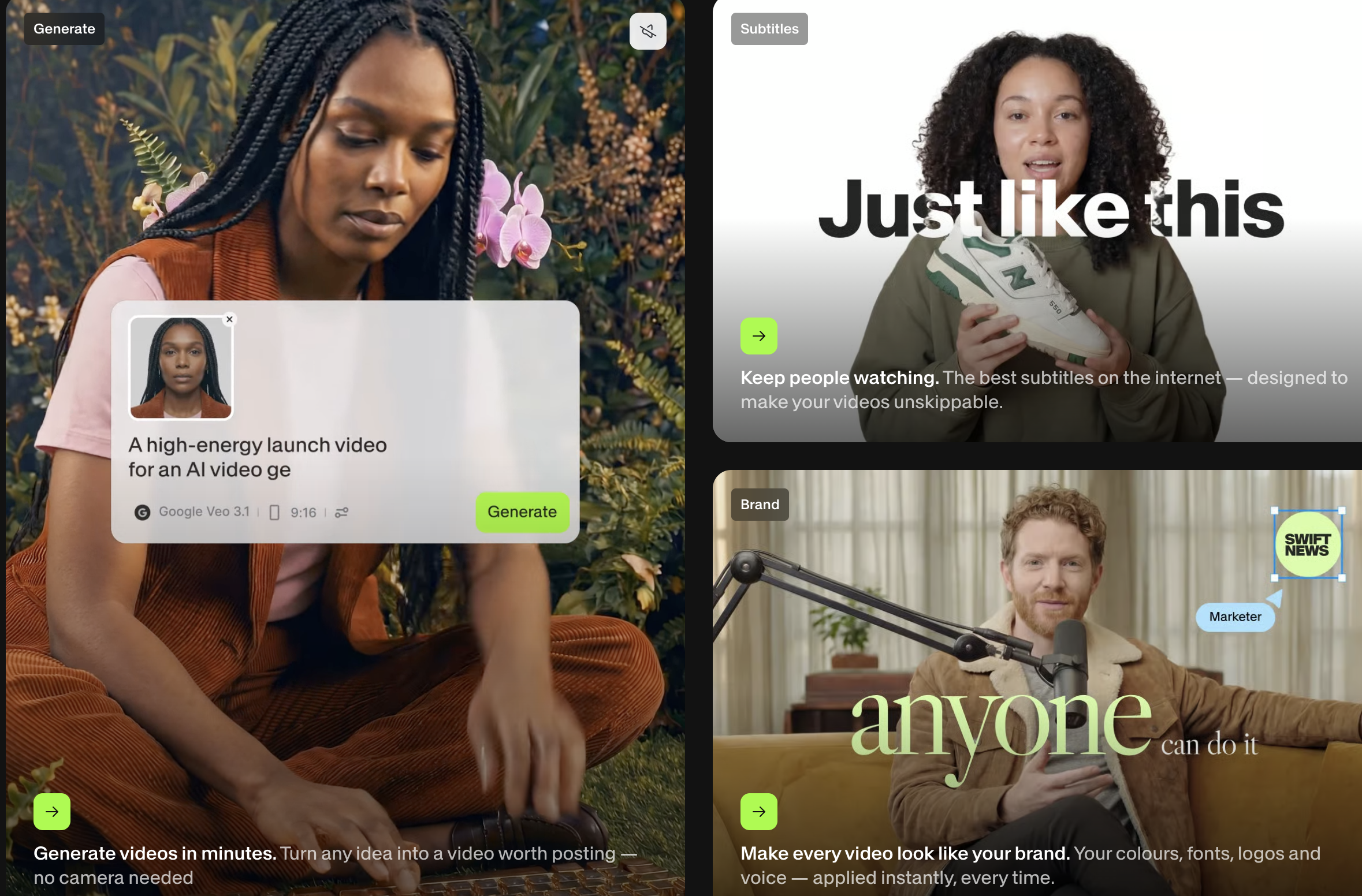
VEED.io is a browser-based video editor built for quick content creation, making it a good choice for training videos, onboarding materials, and internal communications. It combines traditional editing tools with AI-powered features such as automatic subtitles, text-to-speech, eye contact correction, background noise removal, and AI avatars. Screen and webcam recording, collaborative editing, and brand kits make it particularly useful for remote teams creating instructional content.
Unlike more advanced desktop editors, VEED focuses on ease of use, allowing beginners to produce polished videos without a steep learning curve. Since it runs entirely in the browser, projects can be edited from virtually any device without installing software.
VEED
Pricing: VEED offers a free plan with watermarked exports and limited AI features. Paid plans start at $25/month (or $12/month when billed annually) for the Creator tier, which removes watermarks and increases export limits. The Pro plan ($45/month or $22/month billed annually) adds advanced AI tools, brand kits, and collaboration features. Custom Enterprise plans are available for organizations that need SSO, centralized user management, and enhanced security.
Features Of Training Video Editing Software
So now that you know what your competitors have, how do you choose the right feature set for your own product?
The common approach is to start with a minimum viable product (MVP) — a version that contains the most important functionality along with something that distinguishes your training video editing software from the competition.
There are four categories of features that the best instructional video software includes.
Video editing
- Trimming. Removing parts of the video in the beginning and end. The simplest cutting option.
- Rearranging frames. Cutting out parts and moving them around.
- Timeline. A visual representation of the video, allowing precise effect placement and editing.
- Soundtrack. Same as a timeline, but for the sound.
- Overlays. GIFs, text, and static pictures can be placed over the video feed.
- Interactive elements. Tracking objects and people, and enabling people to click on them for different purposes (e.g., getting more information or moving to a different section of a video).
- Drag-and-drop. Not a feature per se, but an approach worth mentioning. It makes the interface more user-friendly.
- Speech-to-text/text-to-speech. The first option helps automatically create captions. The second helps create voiceovers.
- Picture-in-picture. A layout that combines two videos running at the same time. Very useful for commentary, reaction videos, etc.
- Stock content library. A repository with royalty-free videos, pictures, music, characters, and other elements people might want to use.
Video recording
- Video recording. Get the footage and edit it without leaving the app.
- Sound recording. Picking up the sounds from the built-in microphone (more common for mobile apps).
- Slideshow making. Combining pictures from the user’s device (or taken at the moment) into a slideshow.
- Animations. Using premade characters/objects and making them do something.
- Lip-syncing. Automated adjustment of the character’s face to fit the spoken words. Makes the presentation more realistic.
Effects
- Transition effects. Fade in/out, roll from left/right, and other effects that mark a switch from scene to scene.
- AR masks. Augmented reality overlays that stick to the faces of people on the video.
- LUTs. Color correction presets, also known as “Instagram filters”.
- Particle effects. Effects that use lots of tiny elements. They are used, for example, to simulate explosions.
- Voice/sound effects. Modifications to people’s voices and sounds on the video.
- Speed effects. Slo-mo, rapid replay, etc.
Technical
- Resolution support. Ability to record and/or process videos of different resolutions: 1080p, 4K, etc.
- Aspect ratio support. Ability to edit horizontal, vertical, and square videos with different aspect ratios.
- Platform support. Ability to run on Windows, Mac, Android, and iOS. Cloud-based training video editing software can work on almost anything with a screen and Internet access.
Of course, the more features you want to include, the more lengthy and expensive your product will turn out to be. However, there is a way to decrease the expenses. We will tell about it in the next section.
50% Dev Costs Savings: How an SDK/API Helps Save Costs While Building Video Editing Software
You likely want to create the best video editing software for training videos. But you can only do so much with the budget you have, especially when you haven’t got any outside investment.
Using a premade video editing SDK or video API could help you cut both the time-to-market and the development costs by up to 50%. The developers of Weat used the existing video editing features from the SDK and only developed their unique features, decreasing the overall expenses.
With Banuba Video Editor SDK we can cut our development effort in half so we can focus more on core business functionality.
Ash Zarif, CTO, Weat.
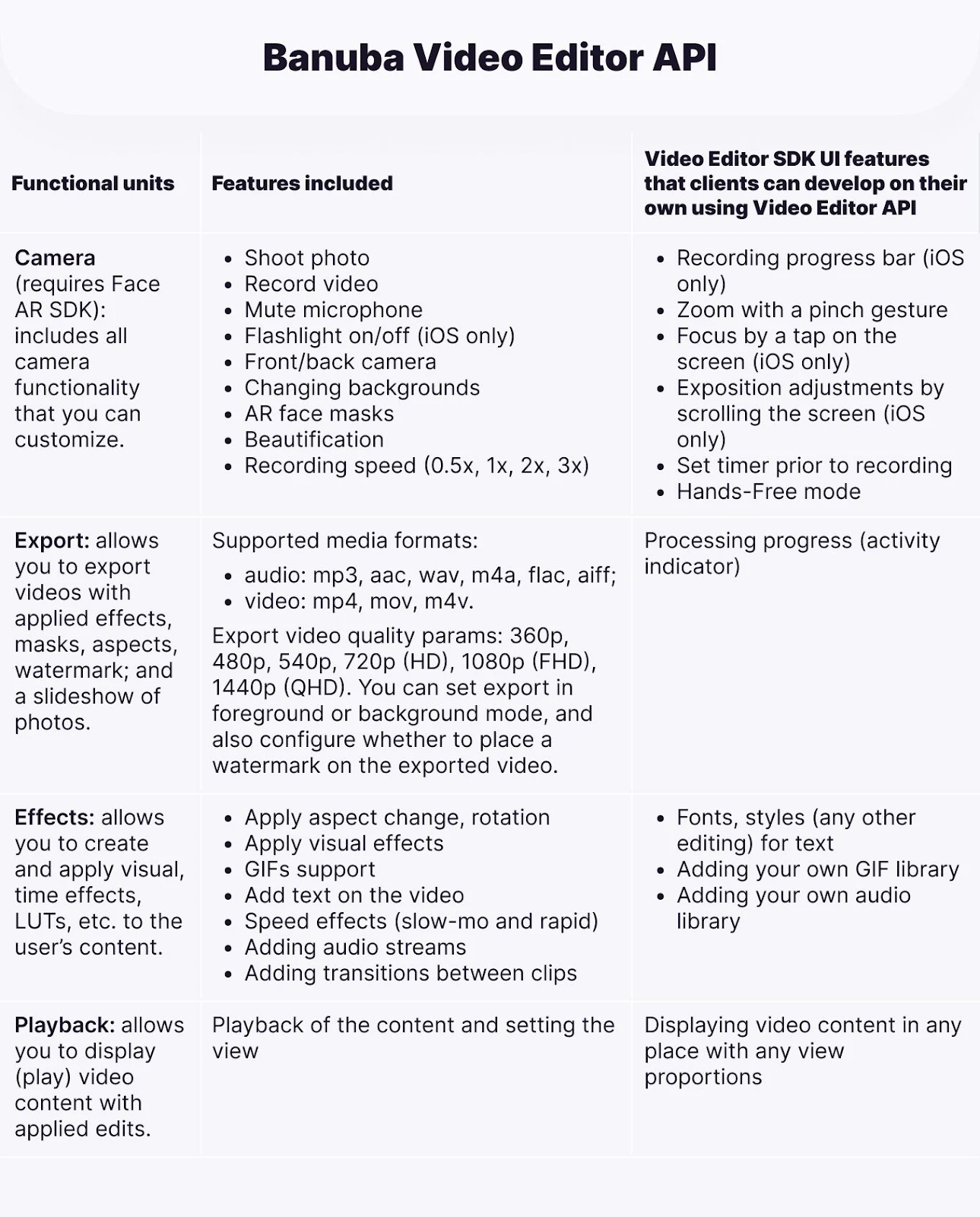
An SDK is a software package that you can integrate into your project within a week, often in under an hour. It can already perform a set of functions like trimming, basic audio editing, adding transition effects, placing overlays, making slideshows, etc. This means you don’t have to develop these features yourself.
The API as a product is essentially similar. It has fewer features but more flexibility with UI and other modifications.
This is also a matter of a smaller upfront payment. To make everything from scratch, you will need a development team, which is hard to find and expensive to maintain. Qualified developers can command salaries of over $100K/year, and you’ll need to retain several to see results in a reasonable amount of time. A yearly license for an SDK costs much less.
See how easy it is to integrate your training video software with one such SDK and video effects API — Banuba Video Editor SDK, in this case.
The first step for any platform is getting the SDK itself and the trial token to test it. To do so, just send us a message.
You can see the detailed instructions on GitHub.
SDK:
API:
Why Banuba Video Editor SDK
With the core features taken care of by Banuba Video Editor SDK, your product will be able to join the ranks of the best instructional video software faster and cheaper. But there are more reasons to choose it:
- A huge number and variety of effects: transitions, AR masks, text and GIF overlays, beautification, slo-mo/rapid, etc.
- 1000+ effects in the asset store;
- Compatible with cross-platform mobile frameworks — extra time- and cost-saving potential;
- FullHD support;
- Runs on devices starting from iPhone 5S and 80% of Androids.
So don’t hesitate to contact us and start your free trial now.
Conclusion
There are a lot of tools to create training videos. They include specialized, multipurpose, and ones for making animations or slideshows. However, you can still enter the market and make your product the best instructional video software by learning from the existing competitors.
To save money on the development and release your product faster, you can use a prebuilt SDK or API that offers a set of features out of the box to make your MVP way more impressive, cost-efficient, and fast to launch.
-
The complete technical documentation for the Banuba Video Editor SDK is available online and includes requirements, setup instructions, and configuration details:
- Banuba Video Editor SDK iOS documentation
- Banuba Video Editor SDK Android documentation
- Banuba Video Editor SDK Flutter documentation
- Banuba Video Editor SDK React Native documentation
This Banuba Video Editor SDK documentation is regularly updated and should be your primary reference during integration.
-
You can access official integration code samples for the Banuba Video Editor SDK on GitHub. Banuba provides platform-specific examples to help you integrate faster:
- Banuba Video Editor SDK iOS integration code sample
- Banuba Video Editor SDK Android integration code sample
- Banuba Video Editor SDK Flutter integration code sample
- Banuba Video Editor SDK React Native integration code sample
These Banuba Video Editor SDK repositories include setup instructions and minimal working examples for quick deployment.
-
Yes. The Banuba Video Editor SDK includes an LLM-friendly documentation file designed for AI-assisted development and internal knowledge systems:
This structured Banuba Video Editor SDK text file can be used with AI tools to streamline onboarding and developer workflows.
-
The Banuba Video Editor SDK provides official cross-platform plugins to simplify integration into hybrid applications:
These Banuba Video Editor SDK plugins are maintained by Banuba and support faster implementation for cross-platform apps.
-
Yes. Banuba publishes an open AI VE Agent skill so developers can use AI assistants to integrate and work with the Video Editor SDK. You can find it in the Banuba AI VE Agent skill repository.
-
There is no single product that would be perfect for every instructional video creator. Depending on the needs, stylistic preferences, and costs, you can go for any of them. If you are building your own training-video product rather than buying one, Banuba Video Editor SDK adds a ready-made editor to your app; see how the options compare in best video editor SDKs compared.
-
Trainers choose the best software for training videos for their specific needs: iSpring, Nero Video, PowToon, Animaker, and dozens of others. Teams building a custom training-video app often add editing through Banuba Video Editor SDK and its effects asset store.
-
To make a training video you need a script and preferably the best tools for recording training videos you can get your hands on. If you would rather build recording and editing into your own app, Banuba Video Editor SDK cut development effort roughly in half for the Weat team, read the case study.